TL;DR
Apple introduced iPhone Duo on September 9, 2026, with a 7.6-inch inner display, a 5.4-inch outer display and a 48MP Dual Fusion camera system. Those features can make it easier to see your composition while someone else takes the picture. They do not make a photo automatically compliant: choose the document route first, capture an unfiltered original, inspect it at full size and create the final crop only for that route.
What iPhone Duo changes—and what it does not
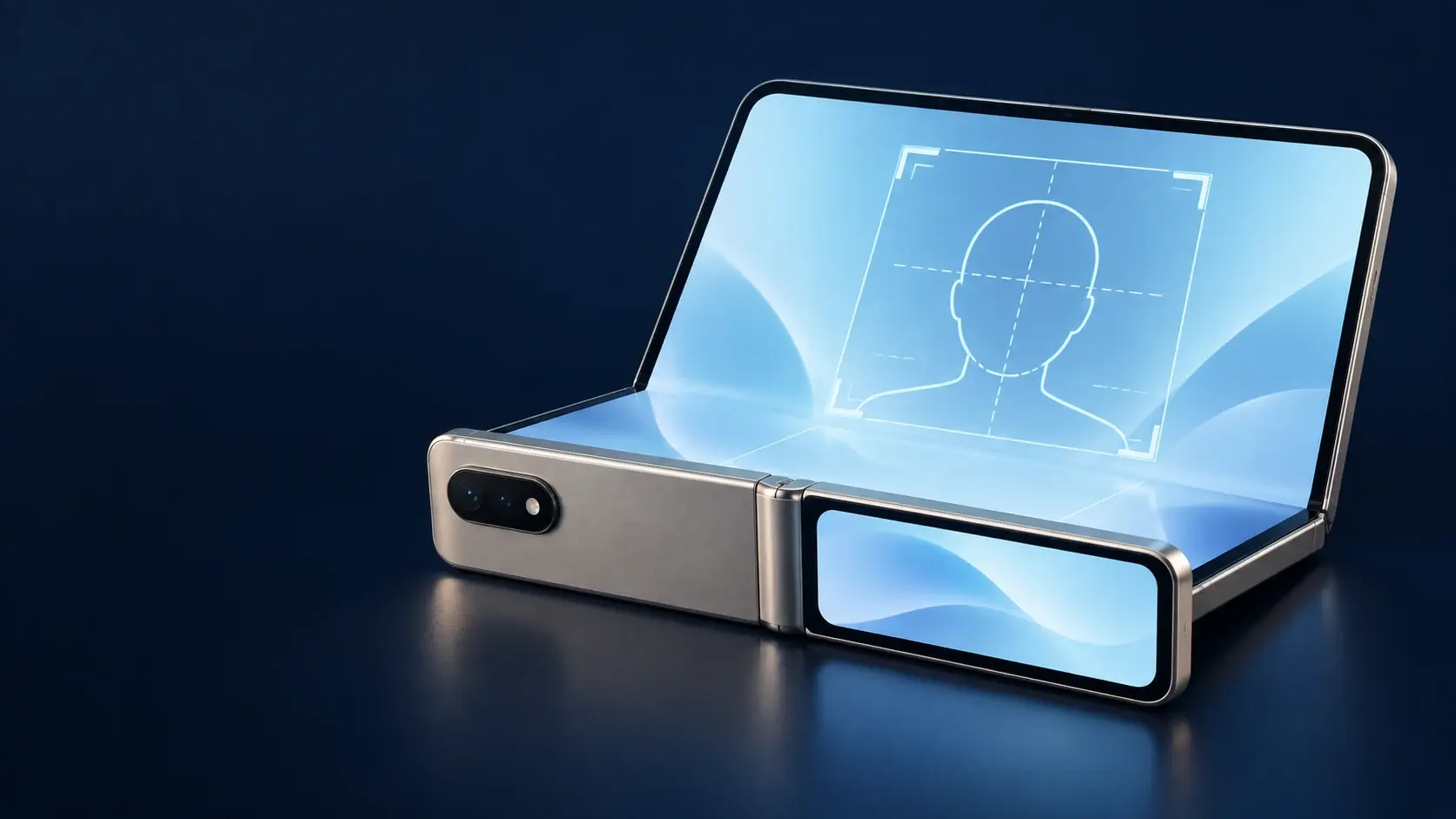
Apple describes iPhone Duo as its first foldable iPhone. It opens to a 7.6-inch inner Super Retina XDR display and closes to a 5.4-inch outer display. The product page also lists a 48MP Dual Fusion camera system, Duo Preview for showing a live view on the outer display and Smart Take for hands-free capture. These are useful shooting features, not government specifications.
A passport office still decides whether the photograph is acceptable. The phone’s screen size, hinge and camera resolution do not replace the required physical dimensions, head position, background, expression or file limits.
A second screen can reduce guesswork
When the phone is opened or supported at an angle, the person in front of the camera can see whether the head is centred and whether the background is clean. Duo Preview can help the photographer check the composition without walking back and forth. Keep the phone fixed while you make small changes to distance, light or posture; do not ask a subject to lean into a changing crop.
The document authority still wins
Use the official instructions for the document and application route as the source of truth. A high-resolution file can still fail because the face is too small, the background is wrong, the image is old or the upload belongs to a different workflow. IDPIC can prepare a file after those rules are known, but it cannot decide an officer’s final review.
Build a calm setup before opening the camera
Start with the room, not the phone. Choose a plain background that matches the authority’s rule, leave space between the person and the wall, and use broad light from in front or slightly to the side. The goal is an evenly lit original with visible facial detail, not a dramatic portrait.
Ask someone to take the picture if possible. A helper can keep the camera level, watch the outer-screen preview and notice shadows or hair covering the face. A stable stand or the iPhone Duo Folio kickstand can hold the angle, but never balance the device where it could fall onto the subject.
Keep the lens and face at a natural distance
Use the rear camera at a comfortable distance and move the phone or tripod instead of stretching the zoom. Avoid the closest wide-angle view for a head-and-shoulders document portrait because it can enlarge the nose and pull the ears toward the edges. Keep the camera at eye level and leave enough room to make a route-specific crop later.
Treat the first frame as a lighting test
Take one test frame and inspect both cheeks, the eye sockets, the hairline and the wall behind the head. If one side is darker or a hard shadow appears, move the light or the subject before taking the final sequence. Do not try to repair a poor original with a beauty filter, face reshaping or a generated background.
Use the rear camera and review the outer screen
For the clearest source, use the rear camera with the phone held level. The outer display can act as a practical preview while the person stands still. Keep the face fully visible, look at the lens, follow the required expression and remove anything the official route disallows. Take several natural frames, then choose one original rather than repeatedly editing the same file.
Smart Take or a timer can make hands-free capture easier, especially when the phone is supported. They do not select a compliant photograph for you. Turn off filters, photographic styles that change facial appearance, portrait blur and any automatic retouching that changes identity details.
Check the small details at full size
Zoom into the saved original to inspect the eyes, glasses reflections, hair edges, skin texture and motion blur. Make sure the chin and top of the head are not clipped. A preview that looks fine on the small outer display may reveal blur or a shadow when opened on a larger screen.
Keep an untouched master file
Save the camera original before cropping, compressing or converting it. Keep one export per application route so a United States square crop does not overwrite a United Kingdom or China version. If a portal rejects the file, preserve the exact error and correct the relevant property instead of making a series of blind recompressions.
Match the export to the application route
The same iPhone Duo photo may need different preparation depending on where it is submitted. For a United States paper passport application, the official guide calls for a recent 2 × 2 inch colour print and a head height of 1–1⅜ inches. For a United Kingdom passport, printed and digital routes have separate instructions. China’s general paper guidance and its online immigration photo workflow also need to be kept separate.
Use the table below as a starting map, then open the live authority page for your exact application. Do not copy a pixel size from one country into another simply because the image came from the same phone.
United States: separate passport, visa and online renewal
A paper passport application uses the United States passport-photo guidance, including the 2 × 2 inch print and head measurement. A visa upload and an online passport renewal are different channels with their own instructions. iPhone Duo’s camera can provide an original for any of them, but the final crop, file properties and submission step must follow the selected channel.
United Kingdom and China: do not collapse digital and print rules
The United Kingdom lists 35 × 45 mm printed photos and separate digital upload rules, including a light background and an unaltered image. China’s general document photo guidance uses 33 × 48 mm for paper photos, while the National Immigration Administration describes a separate online workflow. Confirm whether your current step is a print, portal upload or an in-person capture before exporting.
A natural face matters more than a new phone
A foldable phone can make the setup more comfortable, but the photograph still needs to look like the person on the day of application. Keep the face straight to the camera, use the expression the authority allows and remove glasses or head coverings only when the applicable rule requires it and it is safe to do so. Medical or religious exceptions belong to the issuing authority’s instructions.
Avoid portrait blur, skin smoothing, face slimming, replacement skies, AI-generated facial detail and any edit that changes identifying features. A clean background and correct crop are preparation steps; they are not permission to repaint the person.
Children and assisted setups need extra supervision
If a child is the subject, follow the country-specific age and eye-position exceptions rather than a generic phone tutorial. Keep hands, toys and supporting adults out of the frame when the rule requires only the child. An adult should supervise the device and the child throughout the capture; never leave a baby unsupported to obtain a better angle.
Use the original to spot a real problem
If the image is soft, overexposed or shadowed, change the setup and take another frame. Do not hide the problem with sharpening, a contrast preset or a synthetic face. The most useful role for iPhone Duo here is showing the problem early on a larger screen so you can retake it honestly.
From original file to final submission
Once you have a clean original, write down the exact destination, document type and channel. Crop and resize a copy for that route, inspect the exported file, and compare its dimensions and background with the current official instructions. Keep the master and the route-specific export until the application is complete.
A successful upload only means the portal accepted the file technically. Save confirmation pages, read any follow-up request and contact the issuing authority when an instruction is unclear. A phone, editor or automated checker can help with preparation; only the authority can make the final decision.
Use IDPIC after the rule is clear
IDPIC is useful for making a route-specific crop, print layout or export from the original you reviewed. Start by selecting the document guide that matches your application, then check the preview and download the result. Keep the original because a later application may require a different size or a new photograph.
Record the date and source you checked
Government pages change. Note the date you read the relevant guidance and keep the official link with your application notes. If the portal, embassy or appointment letter conflicts with a general page, follow the instruction attached to your active application or ask the designated support channel before submitting.
Key data at a glance
| Route | Rule to verify | Duo setup reminder |
|---|---|---|
| U.S. passport paper application | 2 × 2 in colour print; head 1–1⅜ in | Use a level rear-camera frame, then make a square print export |
| UK passport photo | Print and digital routes have separate rules; print head 29–34 mm | Keep the original unaltered and create a 35 × 45 mm print copy only when required |
| China document photo | General paper guidance and online immigration workflow differ | Confirm paper or online channel before choosing 33 × 48 mm or a portal export |
Frequently asked questions
Can I take a passport photo with iPhone Duo?
You can use it to capture a clear original when the application allows a self-prepared photo. The phone does not guarantee acceptance; the issuing authority’s current dimensions, background, expression and file rules still apply.
Does the foldable screen change the passport photo size?
No. The 7.6-inch inner display and 5.4-inch outer display are viewing surfaces. The final physical or digital size comes from the document route, not the phone’s screen.
Should I use Duo Preview or Smart Take?
They can help you see the composition or capture hands-free, especially when the phone is supported. Treat them as convenience features and inspect the saved original yourself; neither feature approves a passport photo.
Can I use Portrait mode, filters or Apple Intelligence edits?
Avoid edits that blur, reshape, beautify or generate facial detail. Keep the face and identifying features natural, and use only the preparation allowed by the official route.
Does iPhone Duo make one file for every country?
No. A clean original can be the starting point, but the United States, United Kingdom, China and other authorities use different sizes, backgrounds and submission channels. Export a separate copy for each application.
When is iPhone Duo available?
Apple’s U.S. product page lists pre-orders from October 16, 2026 and availability from October 23, 2026. Dates and local availability can differ, so check Apple or an authorised retailer in your region.
Example scenario
Mina uses the large preview, then checks the small rules
Mina opens iPhone Duo on a stable stand and asks a friend to use the rear camera. They move away from the wall until the shadow disappears, use the outer display to check the head position and take several unfiltered frames. Before exporting, Mina chooses the exact application route, checks its official photo page and keeps the original untouched. She creates a route-specific crop in IDPIC, measures the print or checks the file properties, and saves the authority link with the application notes.
Sources & References
Public change history
Added a source-backed guide linking iPhone Duo’s foldable camera workflow to passport-photo preparation without promising approval.
Checked Apple’s product and Newsroom pages, added route-specific United States, United Kingdom and China reminders, and separated device features from government rules.